How to Share your Screen in Chrome
To allow a student to share their screen, you must assign them as a presenter in BBB. Please see the How to Assign a Presenter article.
Screen sharing is currently not supported on mobile devices. To share a screen, the presenter must use a desktop, laptop, or Chromebook.
Use screen sharing to show viewers dynamic content or content that cannot be uploaded into the BigBlueButton as a static PDF; you can share your entire screen or an application window from your local desktop or laptop device.
Safari, Internet Explorer, and Edge browsers currently do not support WebRTC enabled screen share.
By default, the first Moderator to enter the BigBlueButton session is allocated the presenter role capabilities; if you are a viewer, you will need to request presenter status from the moderator.
To share your screen, please follow the instructions below:
- Log in to Fullmind’s Learning Management System at https://lms.fullmindlearning.com.
- Click "Join Class" to launch your session.
- Be sure to open any applications or additional browser windows you wish to share beforehand.
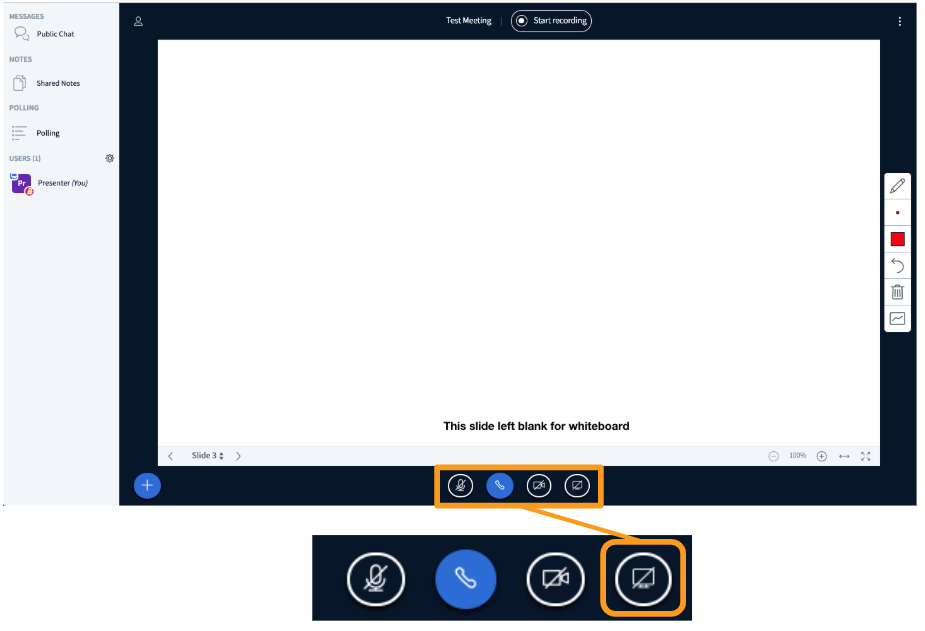
- Select the Screen Share icon found in the media bar of the BigBlueButton interface. You will be prompted to choose either Your Entire Screen [1] or an Application Window [2] or Chrome Tab [3].
- Next, you will be prompted to select the Preferred Screen [4]. If you do not select a preferred screen, you will not be able to proceed. Once you have configured the screen share to your preference, select Share [5] to begin sharing with attendees.
IMPORTANT NOTES:
- When sharing Your Entire Screen, [1] users will see your screen even when navigating to another browser or application window. This setting is recommended if you plan to use several applications and do not wish to reconfigure the screen share with each change.
- When sharing an Application Window [2] users will only see the application selected; if you navigate outside the chosen application, the users will not see these actions. This setting is recommended if you plan to use the same application; sharing an application window also requires less bandwidth than sharing your entire screen.
- Sharing my screen with Chrome Tab [3] on the latest version of Chrome, will allow us to quickly switch between different tabs by going to the tab to share and clicking “Share this tab instead”.