How to Upload Lesson Materials in Advance
To upload lesson materials in advance, please follow the instructions below:
Log in to Fullmind’s Learning Management System at https://lms.fullmind.com/login.
Click on the desired class from the calendar view, and click the "Upload Materials" button. This button may also appear to the right of the calendar for your very next scheduled class (within 5 days).
Note: The option to 'Join Class' will be available for you to select at the very minute the class is scheduled to start. However, at any time before a class, an Educator is able to add materials by using the 'drag and drop field' on the 'too early' screen.
Make sure your documents are within the size restrictions and are in an accepted format.
Maximum size is 30 MB or 150 pages per document; you can upload multiple documents into the BigBlueButton as long as they are under the size restrictions.
BigBlueButton will accept Office documents (.doc .docx .pptx), text documents(.txt), images (.png ,.jpg) and Adobe Acrobat documents (.pdf); we recommend converting documents to .pdf prior to uploading for best results.
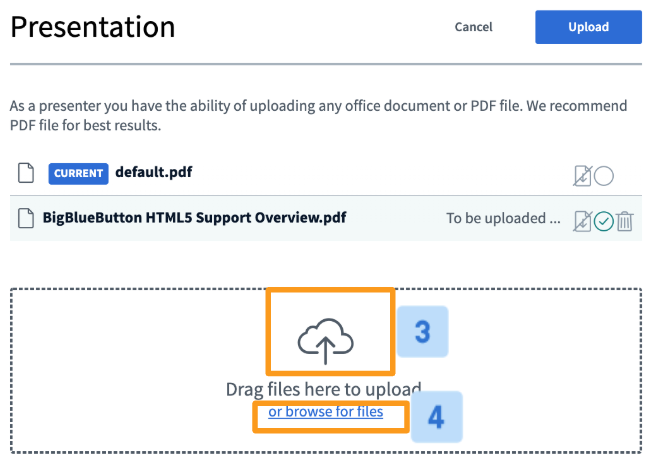
The BigBlueButton presentation uploader will appear. The uploader allows you to drag and drop [3] files into the uploader or browse for files [4] on your OS.
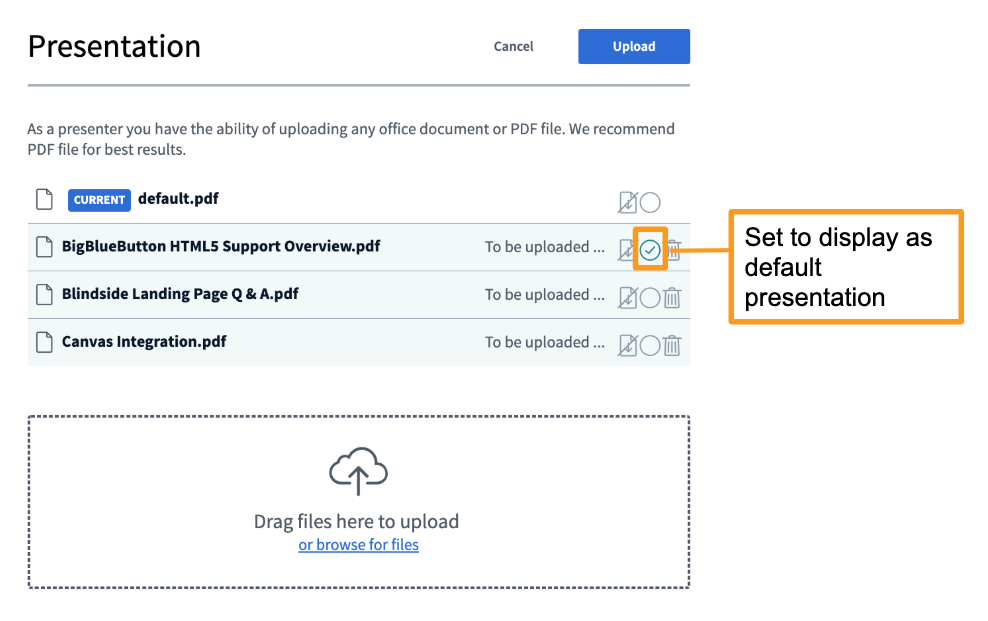
When uploading multiple files at once, be sure to set the file you'd like to be displayed by default, then check the green circle to the right of the document.
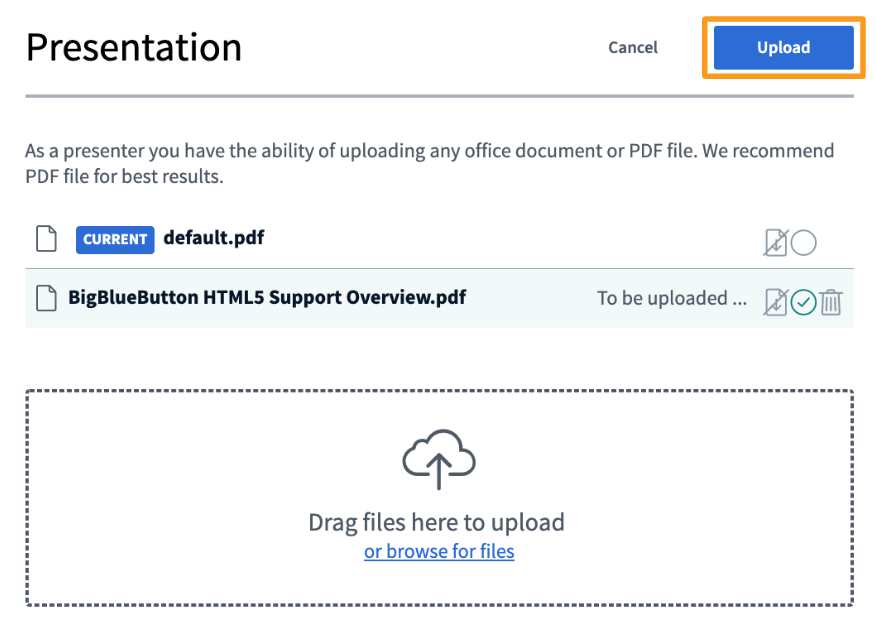
Once you have selected your chosen file(s) for upload, press start to convert and upload the files.
Depending on the size of your document it may take several moments for it to convert and finally upload to the meeting.
Enabling for Download
Any presenter uploading a document can enable it for download by viewers of the live conference at any time.
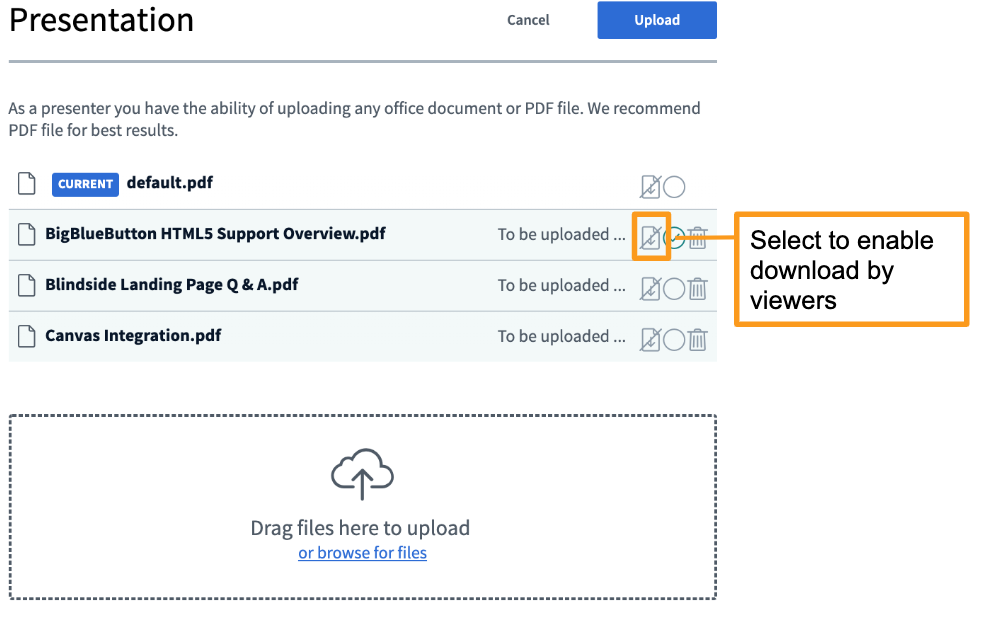
To enable, select the enable download icon located to the right of the document.
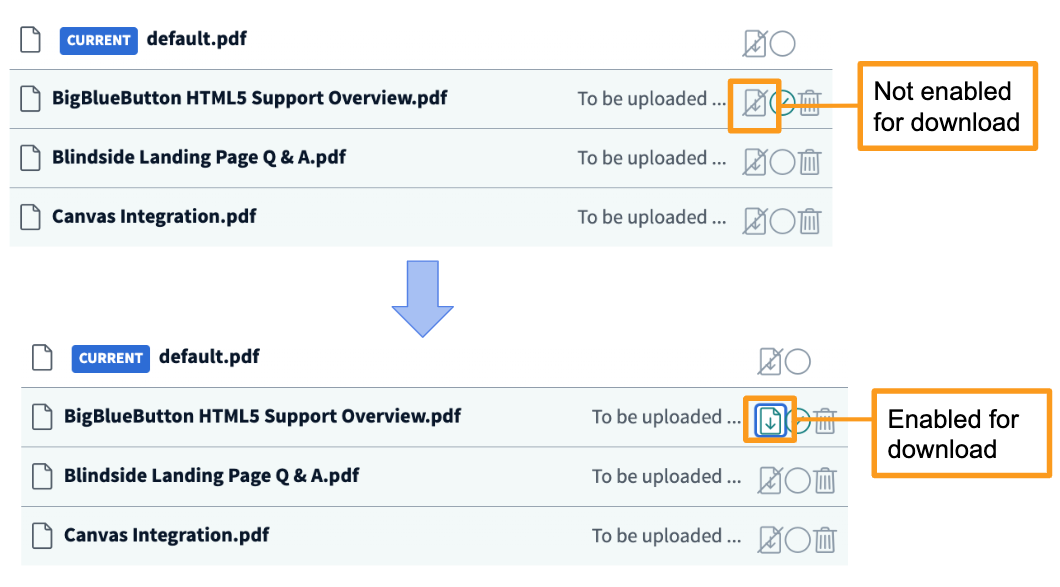
The icon will change to green to indicate the document selected can be downloaded by viewers.
What Viewers See
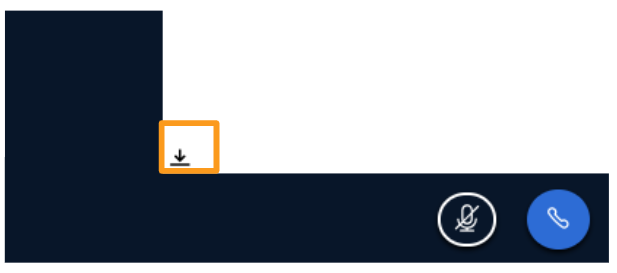
Viewers will be able to download the enabled documents via the file download icon in the bottom left of their screens.
Switching Between Presentations
Once you have uploaded all of your presentations, you can then switch between them on the fly.
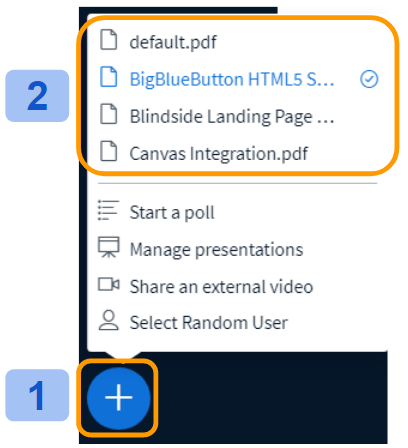
Select the Actions menu [1] in the lower left hand corner of the presentation window, then choose a presentation from one of the already uploaded options [2].