What are the minimum requirements for the BigBlueButton client?
Most people with average bandwidth, recent computer, and latest version of Chrome, FireFox, or Edge should meet all the minimum requirements.
You can test your setup any time by joining https://test.bigbluebutton.org/ (you'll enter into a private test room) and try sharing your audio, video, and screen.
How can I prepare for the BBB Virtual Classroom?
Check out BBB's support site and this Video Tutorial where Fullmind has highlighted a few key features to know about, including how to screen-share with audio, create breakout rooms, use the polling feature, and more.
You can also create your own BBB demo session to practice!
Where are the layout options?
To enlarge the presentation area, the users can select the user list toggle in the upper left hand corner. This will minimize or hide the users list and messaging panels, giving preference to the presentation.
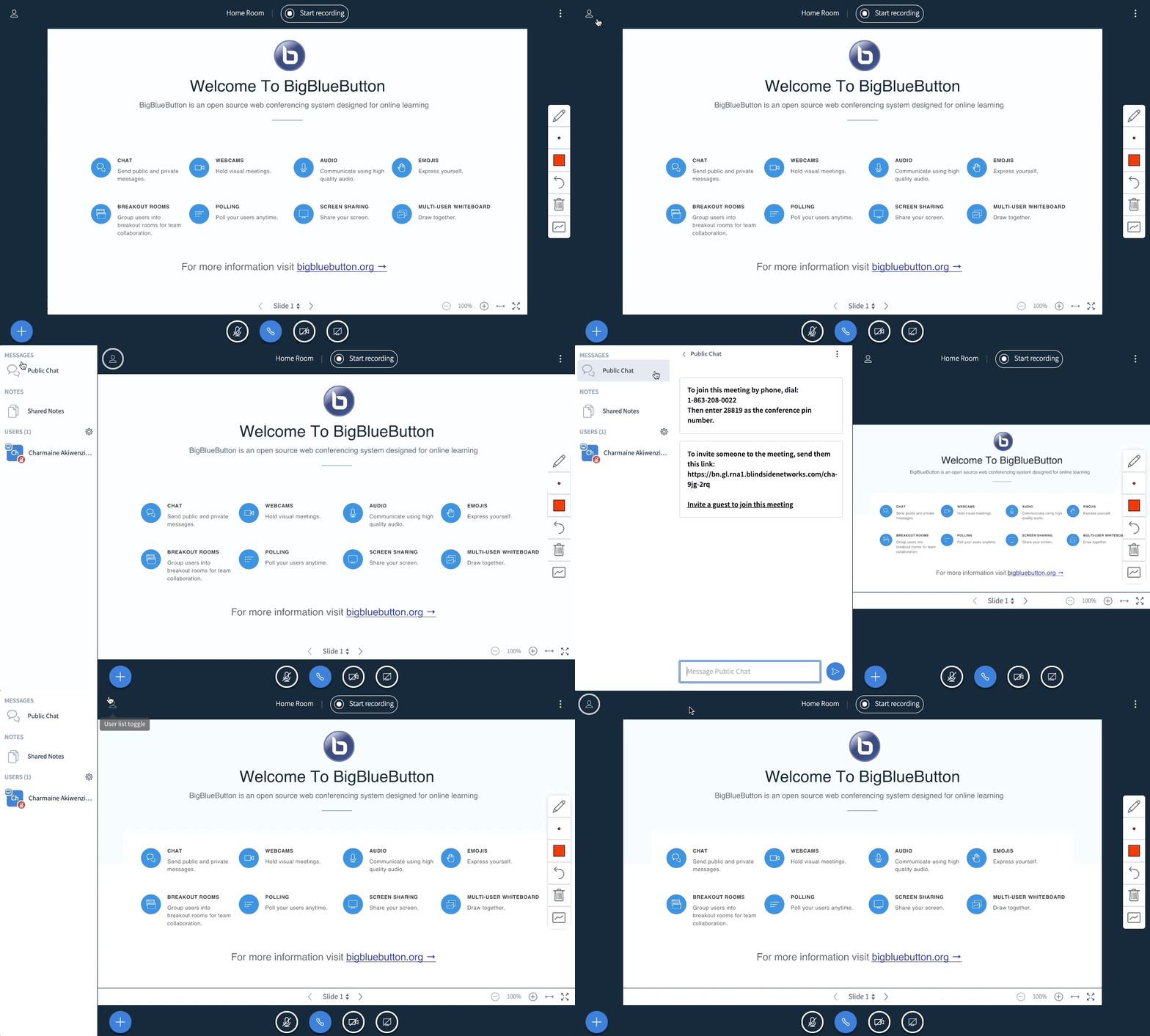
When webcams are being shared, the user can swap the presentation area for the webcams to create a webcam meeting (this option is not available when no webcams are shared):

Where do I find Keyboard Shortcuts in BigBlueButton?
Keyboard Shortcuts are located in the Options Menu.
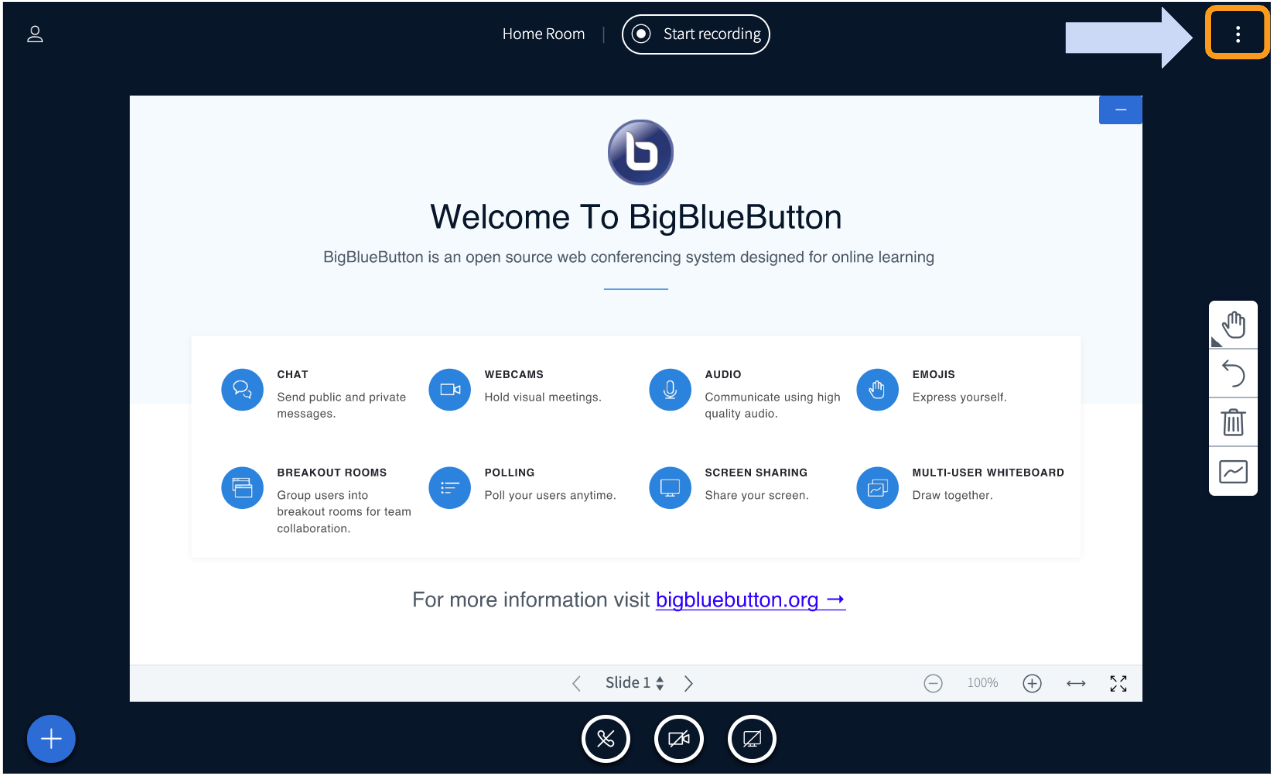
To access the keyboard shortcuts open the Options Menu located in the upper right hand corner of the BigBlueButton User Interface.
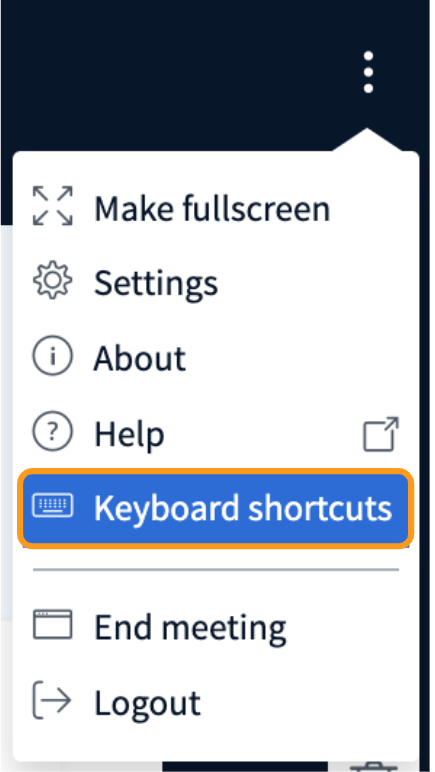
Select Keyboard Shortcuts
Mac
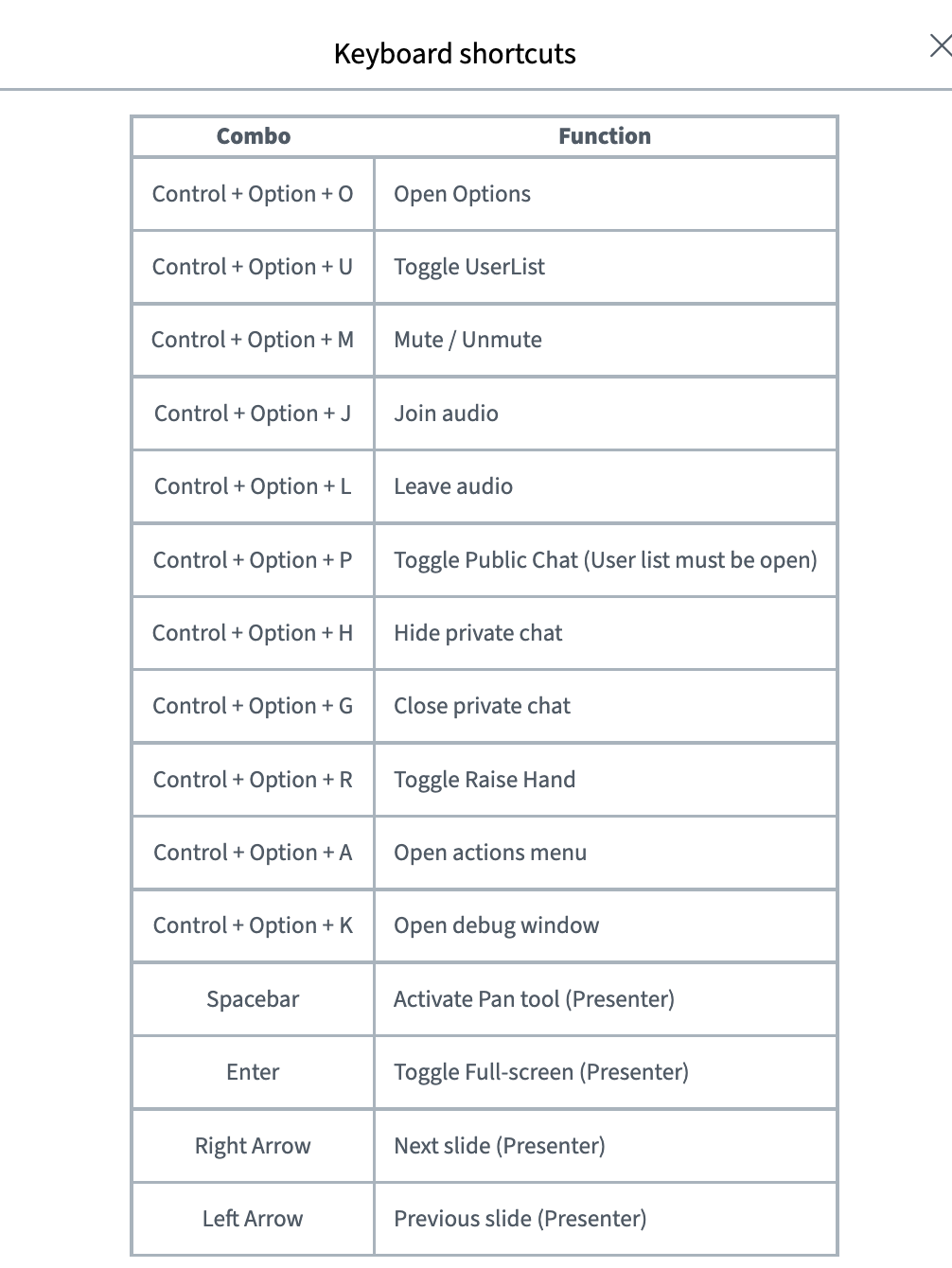
Windows PC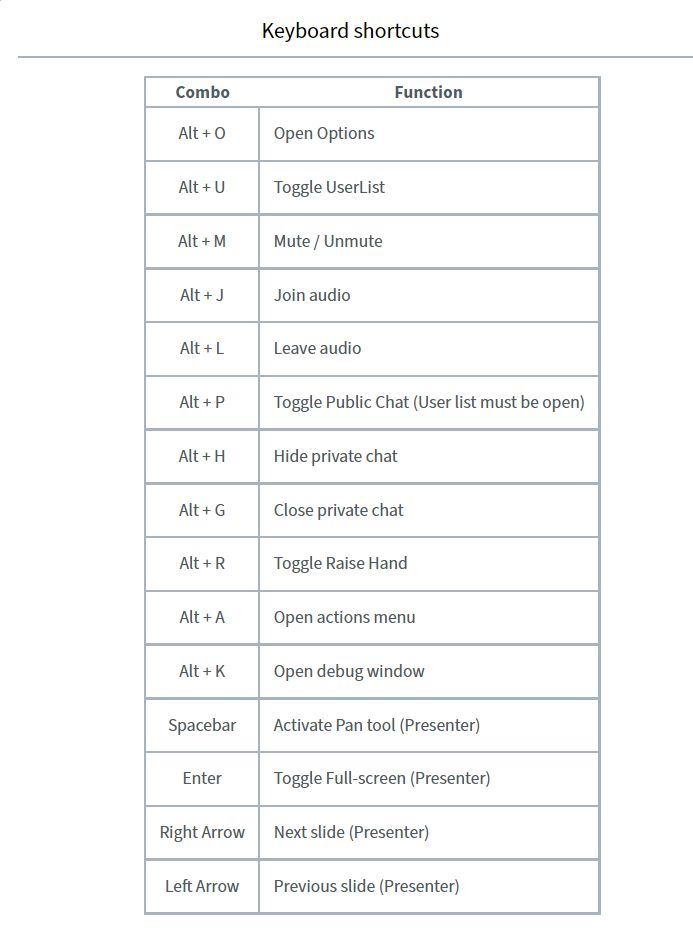
What are the features in BigBlueButton?
BigBlueButton has all the core features you would expect in a web conferencing system.
Unlike generic web conferencing systems, BigBlueButton is designed for online learning; it extends these core features to enable a teacher to engage students in virtual office hours, group collaboration, and full online classes.
For example, a tutor can engage students using the multi-user whiteboard to help a student with solving a difficult math problem.
Here's a list of the features below:
Share your media
- Audio - built-in and dial-in numbers (in some regions)
- Video - low, medium, and high resolution
- Screen sharing
Share your content
- Chat (public/private)
- Upload slides (any PDF, Microsoft PowerPoint, Word, or Excel)
Tools for student engagement
BigBlueButton provides specific capabilities for you to engage your students for online learning.
- Whiteboard annotation
- Multi-user whiteboard
- Breakout rooms
- Shared notes
- Raise hand
- Emojis
- Polling
What are the allowable file types for uploading presentations?
PDF and most office file types can be uploaded in the "Manage Presentations" section. For sharing external videos, you may share your screen with the video or audio that you would like to share with the class.
What is palm rejection? (the last icon on the toolbar)
When someone places his or her hand on the display while writing, the palm rejection function automatically only accepts the pencil's input and ignores touch events. For this reason, they've implemented a manual palm rejection function. While that function is enabled, users can only write with their pencil. If they want to draw with their finger, they have to disable it.
How do I zoom in when uploaded documents are small and hard to read?
Zoom in or expand the document to the width of the screen using the tools at the bottom of the screen below the document.
How Can I Pin a Webcam
To pin a webcam click on the user's name within their webcam view, then click "Pin".
Does the class keep going after the requisite end time?
The users will receive a pop-up slide approximately 5 minutes prior to the scheduled end time as a reminder that the session will be ending soon. If educators "leave" or close out of the window, the link to the session will "expire" and both the session & the recording will officially close after 10 minutes if a moderator/educator is not present.
To end a session, click the 3 dot menu in the upper-right corner of the screen. Then, click end meeting. This will close the meeting for all participants. If you close the tab or “leave” the meeting, students may be left in the session unattended, so be sure to “end” each session.
How Can I Message All Breakout Rooms and Change Time Duration?
To message all breakout rooms, click on the text field labeled "Message all rooms" and type your message.
To increase the duration of your breakout rooms, click on the three dots next to the upper left, then click on "Change duration".
Then click on the text field under "Set duration to (minutes)" and type in how many minutes you would like the breakout rooms to last.
How can I download annotated slides?
To download slide-by-slide annotations, click the 3 dot menu in the upper-right corner. Then, click “Snapshot of current slide”.