How to Join a Live Session
- Log in to Fullmind’s Learning Management System at https://lms.fullmindlearning.com.
- View upcoming classes on the right-hand side of your Calendar (located within your Dashboard), and click the "Join Class" button.
- The educator will launch the session when it is scheduled to start, in this picture example, you would be able to join at 4PM ET.
- The educator will launch the session when it is scheduled to start, in this picture example, you would be able to join at 4PM ET.
How to Enable Your Microphone
To enable your microphone, please follow the instructions below:
- Log in to Fullmind’s Learning Management System at https://new.Fullmindlms.com/login.
- Click on Join Class to launch your desired session.
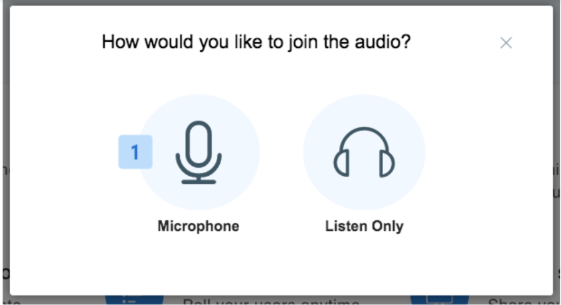
- Click on Microphone when asked ‘How would you like to join the audio?’ and allow the site to have permissions to use your microphone.
- When you first join a session, you will see the Audio Choice, giving you two options to join the audio with a mic or listen only. If you want others to hear you, select Microphone [1].
- If an educator has launched the session, you will automatically be admitted upon the session’s start time.
- You will see a confirmation that the system is "Establishing audio connection" once selected.
- If you are in the session and do not have an indicator next to your emoticon in the users list, you are not connected to the audio. Try refreshing the browser to engage the audio chooser.
- When you select microphone, your browser will prompt you for permission to access your microphone. Be sure to select Allow.
How to Enable Your Camera
To enable your camera, please follow the instructions below:
- Log in to Fullmind’s Learning Management System at https://new.Fullmindlms.com/login.
- Click on Join Class to launch your desired session.
- Click on the webcam button located at the bottom center of the presentation area.
- The browser permissions will usually appear in the upper right-hand corner of the browser; be sure to select allow.
- Once you have allowed the browser access, you will have to choose the device and share.
- If you have more than one webcam device connected, you may need to select the default device from the drop-down menu. You can also choose the picture quality before selecting share.
Need additional help?
Return to the School Admin Support Site
Contact Fullmind: Click Here
Fullmind Chat: Click Here