How to Share Your Screen
💡 Need to show your work, get help from your teacher, or present something cool? Screen sharing makes it easy! Just follow these steps:
👩🏫 Before You Start
Your teacher will make you the Presenter before you can share your screen. When this happens, you’ll see a Presenter icon on your profile. Now you’re ready to go!
📢 Steps to Share Your Screen
🖱️ Click the Screen Share icon at the bottom of the BigBlueButton screen.
Choose what you want to share
- 1️⃣ Entire Screen – Shows everything, even when you switch apps.
- 2️⃣ Application Window – Only shows one app (best if you don’t want to show everything else).
- 3️⃣ Chrome Tab – Great if you only need to show a webpage!
- 4️⃣ Select the screen or app you want to share.
- 5️⃣ Click "Share" – Now your screen is visible to your teacher and classmates! 🎉
🚀 Tips for Screen Sharing
- 🖥️ Entire Screen – Use this if you’ll be switching between different apps. But remember—everyone can see everything on your screen! 👀
- 🗔 Application Window – Best for showing just one app. If you switch to another app, others won’t see it. Saves internet speed too! 📉
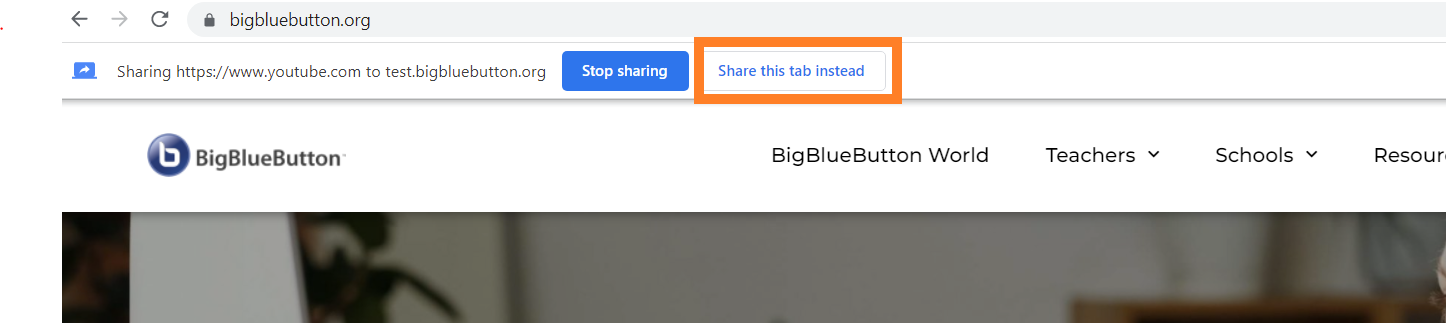
- 📁 Chrome Tab – Quick and easy if you're just showing a website. Click "Share this tab instead" if you need to switch. 🔄
⚠️ Having Trouble Sharing?
If you see Error 1136, try this:
- ❌ Close Chrome and reopen it.
- 🔃 Let Chrome finish updating.
- 🤝 Try sharing again!
Now you're all set to share your screen like a pro! 🚀 Happy learning! 🎓